Taula de continguts
Lab Module 18 IoT and OT Hacking
Lab 1: Perform Footprinting using Various Footprinting Techniques
Task 1: Gather Information using Online Footprinting Tools
- Launch any web browser, go to https://www.whois.com/whois (here, we are using Mozilla Firefox).
-
- Oasis is an organization that has published the MQTT v5.0 standard, which represents a significant leap in the refinement and capability of the messaging protocol that already powers IoT.
- The result appears, displaying the following information, as shown in the screenshots: Domain Information, Registrant Contact, and Raw Whois Data.

- This information is about the organization that has developed the MQTT protocol, and it might help keep track of the modifications and version changes of the target protocol.
- Now, open a new tab, and go to https://www.exploit-db.com/google-hacking-database.
- The Google Hacking Database page appears; type SCADA in the Quick Search field and press Enter.

- Open a new tab and go to https://www.google.com. In the search field, enter «login» intitle:«scada login».

- Advanced Google hacking refers to the art of creating complex search engine queries by employing advanced Google operators to extract sensitive or hidden information about a target company from the Google search results.
- The SEAMTEC SCADA login page appears, as shown in the screenshot.

- Similarly, you can use advanced search operators such as intitle:«index of» scada to search sensitive SCADA directories that are exposed on sites.
- Now, in the browser window, open a new tab and go to https://account.shodan.io/login.
- The Login with Shodan page appears; enter your username and password in the Username and Password fields, respectively; and click Login. If you do not have an existing account, then go to the Register option to register yourself .
- The Account Overview page appears, which displays the account-related information. Click on Shodan on top-left corner of the window to go to the main page of Shodan.
- The Shodan main page appears; type port:1883 in the address bar and press Enter.

- Port 1883 is the default MQTT port; 1883 is defined by IANA as MQTT over TCP.
- Click on any IP address to view its detailed information.

- Detailed results for the selected IP address appears, displaying information regarding Ports, Services, Hostnames, ASN, etc. as shown in the screenshot.

- Similarly, you can gather additional information on a target device using the following Shodan filters:
- Search for Modbus-enabled ICS/SCADA systems: «port:502»
- Search for SCADA systems using PLC name: «Schneider Electric”
- Search for SCADA systems using geolocation: «SCADA Country:«US»»
- Using Shodan, you can obtain the details of SCADA systems that are used in water treatment plants, nuclear power plants, HVAC systems, electrical transmission systems, home heating systems, etc.


Lab 2: Capture and Analyze IoT Device Traffic
Task 1: Capture and Analyze IoT Traffic using Wireshark
- To install the MQTT Broker

- The MQTTRoute will execute and the command prompt will appear. You can see the TCP port using 1883.

- To create IoT devices, we must install the IoT simulator on the client machine using Bevywise_IoTSimulator_3.exe

- Upon double-clicking the runsimulator.bat file opens in the command prompt. If How do you want to open this? pop-up appears, select Microsoft Edge browser and click OK to open the URL http://127.0.0.1:9000/setnetwork?network=HEALTH_CARE.
- The web interface of the IoT Simulator opens in Edge browser. In the IoT Simulator, you can view the default network named HEALTH_CARE and several devices.

- Next, we will create a virtual IoT network and virtual IoT devices. Click on the menu icon and select the +New Network option.

- The Create New Network popup appears. Type any name (here, CEH_FINANCE_NETWORK) and description. Click on Create.
- In the next screen, we will setup the Simulator Settings. Set the Broker IP Address as 10.10.1.19 (the IP address of the Windows Server 2019 ). Since we have installed the Broker on the web server, the created network will interact with the server using MQTT Broker. Do not change default settings and click on Save.

- To add IoT devices to the created network, click on the Add blank Device button.

- The Create New Device popup opens. Type the device name (here, we use Temperature_Sensor), enter Device Id (here, we use TS1), provide a Description and click on Save.

- The device will be added to the CEH_FINANCE_NETWORK.

- To connect the Network and the added devices to the server or Broker, click on the Start Network red color circular icon in right corner.

- When a connection is established between the network and the added devices and the web server or the MQTT Broker, the red button turns into green.
- Next, switch to the Windows Server 2019 machine. Open a web browser, and go to http://localhost:8080 and login using admin/admin (here, we are using Firefox Browser).

- Since the Broker was left running, you can see a connection request from machine 10.10.1.22 for the device TS1 under Recent Connections section.

- Switch back to Windows Server 2022 machine. Next, we will create the Subscribe command for the device Temperature_Sensor.
- Click on the Plus icon in the top right corner and select the Subscribe to Command option.

- The Subscribe for command - TS1 popup opens. Select On start under the Subscribe on tab, type High_Tempe under the Topic tab, and select 1 Atleast once below the Qos option. Click on Save. Scroll down the page, you can see the Topic added under the Subscribe to Commands section.

- Next, we will capture the traffic between the virtual IoT network and the MQTT Broker to monitor the secure communication.
- Minimise the Edge browser. Click Type here to search field on the Desktop, search for wireshark in the search bar and select Wireshark from the results.
- The Wireshark Application window appears, select the Ethernet as interface
- Make sure you have selected interface which has 10.10.1.22 as the IP address.
- Click on the Start Wireshark icon to start the capturing packets, leave the Wireshark running.
- Leave the IoT simulator running and switch to the Windows Server 2019 machine.
- Navigate to Devices menu and click on connected device i.e.TS1.

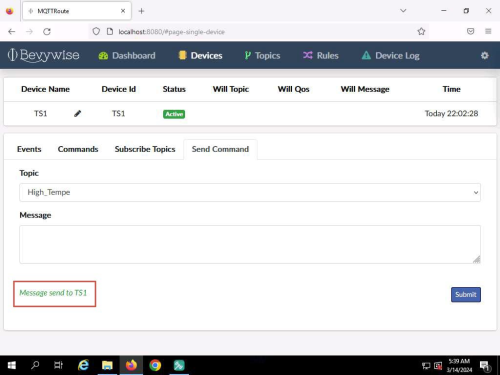
- Now, we will send the command to TS1 using the High_Tempe topic. In Send Command section, select Topic as High_Tempe, type Alert for High Temperature in Message field and click on the Submit button.

- Message sent to TS1 appears under Message box which indicates that the message was successfully sent to TS1.
- Next, switch to Windows Server 2022 machine. We have left the IoT simulator running in the web browser. To see the alert message, maximise the Edge browser and expand the arrow under the connected Temperature_Sensor, Device Log section. You can see the alert message «Alert for High Temperature»

- To verify the communication, we have executed Wireshark application, switch to the Wireshark traffic capturing window. Type mqtt under the filter field and press Enter. To display only the MQTT protocol packets.

- Select any Publish Message packet from the Packet List pane. In the Packet Details pane at the middle of the window, expand the Transmission Control Protocol, MQ Telemetry Transport Protocol, and Header Flags nodes.
- Under the MQ Telemetry Transport Protocol nodes, you can observe details such as Msg Len, Topic Length, Topic, and Message.
- Publish Message can be used to obtain the message sent by the MQTT client to the broker.

- Select any Publish Release packet from the Packet List pane. In the Packet Details pane at the middle of the window, expand the Transmission Control Protocol, MQ Telemetry Transport Protocol, and Header Flags nodes.
- Under the MQ Telemetry Transport Protocol nodes, you can observe details such as Msg Len, Message Type, Message Identifier.

- Now, scroll down, look for the Publish Complete packet from the Packet List pane, and click on it. In the Packet Details pane at the middle of the window, expand the Transmission Control Protocol, MQ Telemetry Transport Protocol, and Header Flags nodes.
- Under the MQ Telemetry Transport Protocol nodes, you can observe details such as Msg Len and Message Identifier.

- Now, scroll down, look for the Publish Received packet from the Packet List pane, and click on it. In the Packet Details pane at the middle of the window, expand the Transmission Control Protocol, MQ Telemetry Transport Protocol, and Header Flags nodes.
- Under the MQ Telemetry Transport Protocol nodes, you can observe details such as Message Type, Msg Len and Message Identifier.

- Similarly you can select Ping Request, Ping Response and Publish Ack packets and observe the details.


Lab 3: Perform IoT Attacks
Task 1: Perform Replay Attack on CAN Protocol
- In the Ubuntu machine, open a Terminal window and execute sudo su to run the programs as a root user (When prompted, enter the password toor).
- Run sudo apt-get install can-utils to install CAN utility
- Now, to setup a virtual CAN interface issue following commands:

- sudo modprobe can
- sudo modprobe vcan
- sudo ip link add dev vcan0 type vcan
- sudo ip link set up vcan0
- To check whether Virtual CAN interface is setup successfully, run ifconfig. Here, vcan0 interface is present which confirms that our Virtual CAN interface is setup successfully.

- Run chmod -R 777 ICSim to give permissions to the ICSim folder.
- Now, run cd ICSim to navigate to ICSim directory and execute make command to create two executable files for IC Simulator and CANBus Control Panel.

- Run ./icsim vcan0 to start the ICSim simulator. You will see the IC Simulator interface as shown in the screenshot.

- Open a new terminal tab and execute sudo su to run the programs as a root user (When prompted, enter the password toor). Navigate to ICSim directory to do so run cd ICSim/.
- Execute ./controls vcan0 to start the CANBus Control Panel. You will see the CANBus Control Panel interface as shown in the screenshot.

- Now, we will start sniffer to capture the traffic sent to the ICSim Simulator by CANBus control panel simulator. To do so, open a new terminal tab and execute sudo su to run the programs as a root user (When prompted, enter the password toor). Navigate to ICSim directory to do so run cd ICSim/.
- Execute cansniffer -c vcan0 to start sniffing on the vcan0 interface. Leave this sniffer on.
- Open a new terminal and execute sudo su to run the programs as a root user (When prompted, enter the password toor). Navigate to ICSim directory to do so run cd ICSim/. To capture the logs run candump -l vcan0.
- After starting to capture the logs, open ICSim and Controller simulator and perform functions such as acceleration, turning left/right, opening and locking doors so that logs are generated. Once you are done, terminate the ongoing process by pressing Ctrl + C.

- Now verify if you have obtained the log file by executing ls command. The .log file has been generated as shown in the screenshot.
- Now, to perform replay attack, run canplayer -I candump-2024-05-07_063502.log and press enter.
- Once the log file is executed, you can see the movements that were performed while creating the log file in real time in IC Simulator and CANBus control panel simulator.


